Loan

Loan

Loan
The Loans module in Exxforce Payroll helps you manage all the loans that you’ve provided to your employees. You can deduct repayments from the employees’ salaries each month, and record manual repayments as well.

Recording Loans

To Record a Loan:
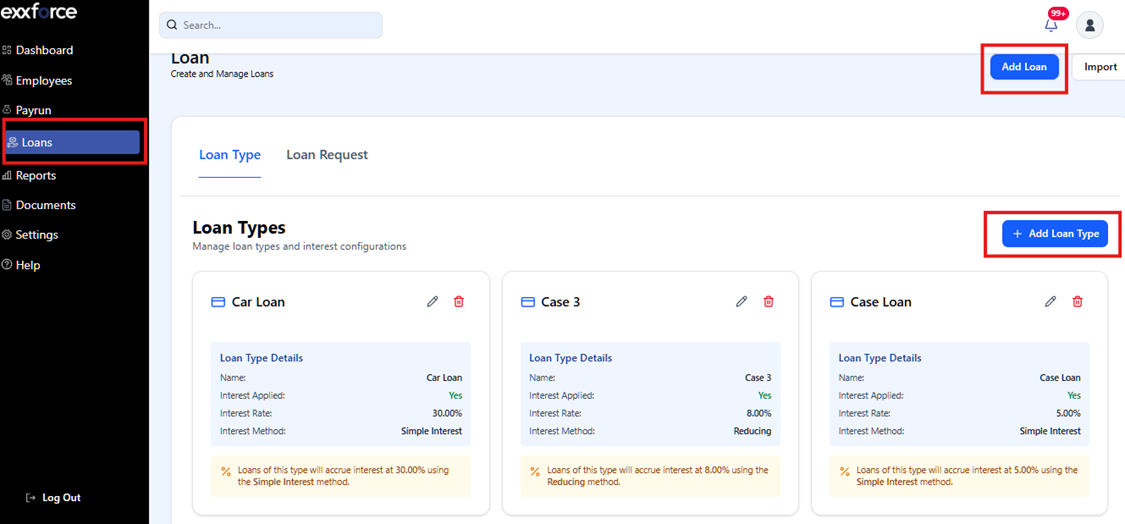


Steps

Actions

1

Go to the Loans module

2

Click Record Loan.

3

Select a Loan Type

4

You can create loan types by clicking Add Loans Type.

5

Loan type name

6

Enter interest type from the dropdown

7

Enter interest rate

8

Click Save and Continue

To Add Loan:


Steps

Actions

1

Select the employee for whom you’re recording the loan

2

Enter the Loan amount and Loan type

3

Start date of repayment and repayment duration (months)

4

Add monthly deduction

5

Reason for loan (optional)

6

Click Save.

Recording Manual Repayments

Once you’ve recorded a loan, the repayments will be automatically deducted from the employee’s income each month. You can also record manual repayments by following these steps:


How to record manual repayment:


Steps

Actions

1

Go to the Loans module

2

Click on the more option

3

Click view details

4

Click Update Repayment

5

Enter the Repayment Amount

6

Select a Repayment Date

7

Enter the Note (optional

8

Click Update Repayment


EDIT LOAN
How to edit a loan


Steps

Actions

1

Go to the loan module on the left side of the dashboard

2

Click on the eclipses > Edit loan

3

Make the changes e.g. loan amount, repayment date etc.

4

Click Save Changes


PAUSE LOAN
How to pause a loan


Steps

Actions

1

Go to the loan module

2

Click on the eclipses > View details

3

Click on the eclipses > Pause loan

4

Select the pause type, start date, resume date and reason for pause

5

Click Pause loan

    • Related Articles

    • Leve Type and Approval Flow

      You can manage your company leave type and policies here. To add your leave type Steps Action 1 Navigate to the Company Settings page in Settings 2 Click leave type then Add leave type name 3 Add the default days 4 Add Minimum Months Required 5 Tick ...
    • Employee

      The Employees module in Exxforce Payroll allows you to add and manage employees personal and salary details, upload documents and employee payment information. Add Employees To add an employee in Exxforce Payroll: Navigate to the Employees module on ...
    • Reports

      This is where you access and analyze detailed reports for your payroll data, it consists of different reports; Activity Logs/Audit Trail Activity logs is a detailed report of all the activities that take place in a particular period in your Zoho ...
    • Getting to know exxforce payroll

      Dashboard: Get an overview of your payroll and insights on the number of total employees in your organization. You can also view the numbers of employee that has been paid salaries, and also key statistics about your organization like Net Pay, PAYE ...
    • Import Function

      The Import feature allows users to bulk-upload various types of payroll and personnel data into the system using CSV or Excel files. This tool simplifies data management by enabling the mass creation or updating of records for employees, financial ...